By the end of this lesson
You can connect your Shopify, Salla, Zid or WooCommerce store, confirm the names the AI knows you by, and trust that nothing changes on your store until you approve a fix or turn on auto-apply.
Rizecart can only show you where an AI sends your buyers if it knows your store: your products, prices, stock and orders. Connecting is how it learns them. Setup takes about five minutes, and the first screen says it plainly: nothing changes on your store without your approval.
Why does Rizecart need your store?
When a shopper asks ChatGPT or Gemini where to buy something, the AI names stores it can check: a price it can read, stock it can see, delivery to the shopper's city. Rizecart compares what each AI said with what your product pages carry. Without your catalogue, it can't tell you which product fit the question, or which fact was missing.
Your orders matter too: the Sales from AI page counts AI orders from the orders your platform already records. See How attribution works.
What you need before you start
- Admin access to your store on Shopify, Salla, Zid or WooCommerce (on WooCommerce, your WordPress admin), so you can approve the connection on the platform's own page.
- The owner or admin role in your Rizecart workspace. Members and viewers can't connect a store.
- For Shopify, your store address, like
your-store.myshopify.com. For WooCommerce, your site address, likehttps://your-store.com. - Your brand name in English and, if you have one, in Arabic.
How to connect your store
Sign in
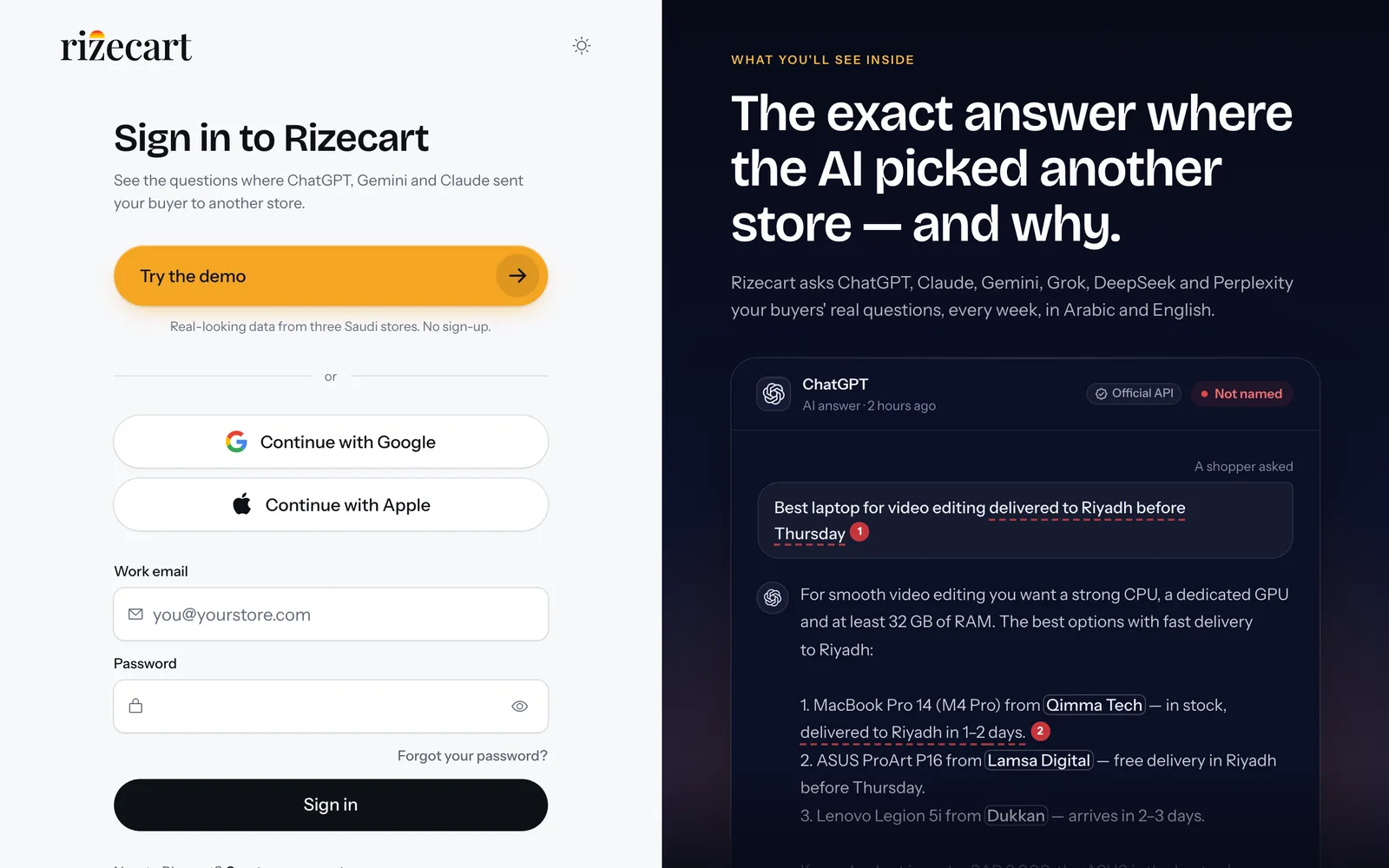
Open the Rizecart app and choose Continue with Google or Continue with Apple, or type your Work email and Password and choose Sign in. New to Rizecart? Choose Create an account: we email you a code to confirm your address.
Create your workspace
The first time you sign in, you'll see Create your workspace. Give it a name, choose My own store or An agency, then Create workspace. A workspace holds your stores, your team and your plan.
Pick your platform
Under Connect your store, choose Connect next to Salla, Zid, Shopify or WooCommerce. For Salla and Zid you go straight to the platform's own page to approve access. For Shopify, type your address in Your Shopify store address, choose Connect again, then approve in Shopify. For WooCommerce, type your site address in Your store address, choose Connect again, then approve Rizecart in your WordPress admin.
Come back and continue
After you approve, you land back in Rizecart with a banner like “Salla connected. We're syncing your products now.” Your store card shows its product count. Choose Continue.
Confirm your brand and competitors
Check Brand name (English) and Brand name (Arabic). Under Stores the AI names in your category, tap a store to keep it or drop it, then choose Looks right. An empty list is normal on day one: we find your competitors after the first run.
Choose your plan, then your first questions
Next comes Choose your plan: there's no free plan, and measuring starts the moment your plan is active. Then Pick your first questions, which has its own lesson: Choose your questions.
Why your brand names matter
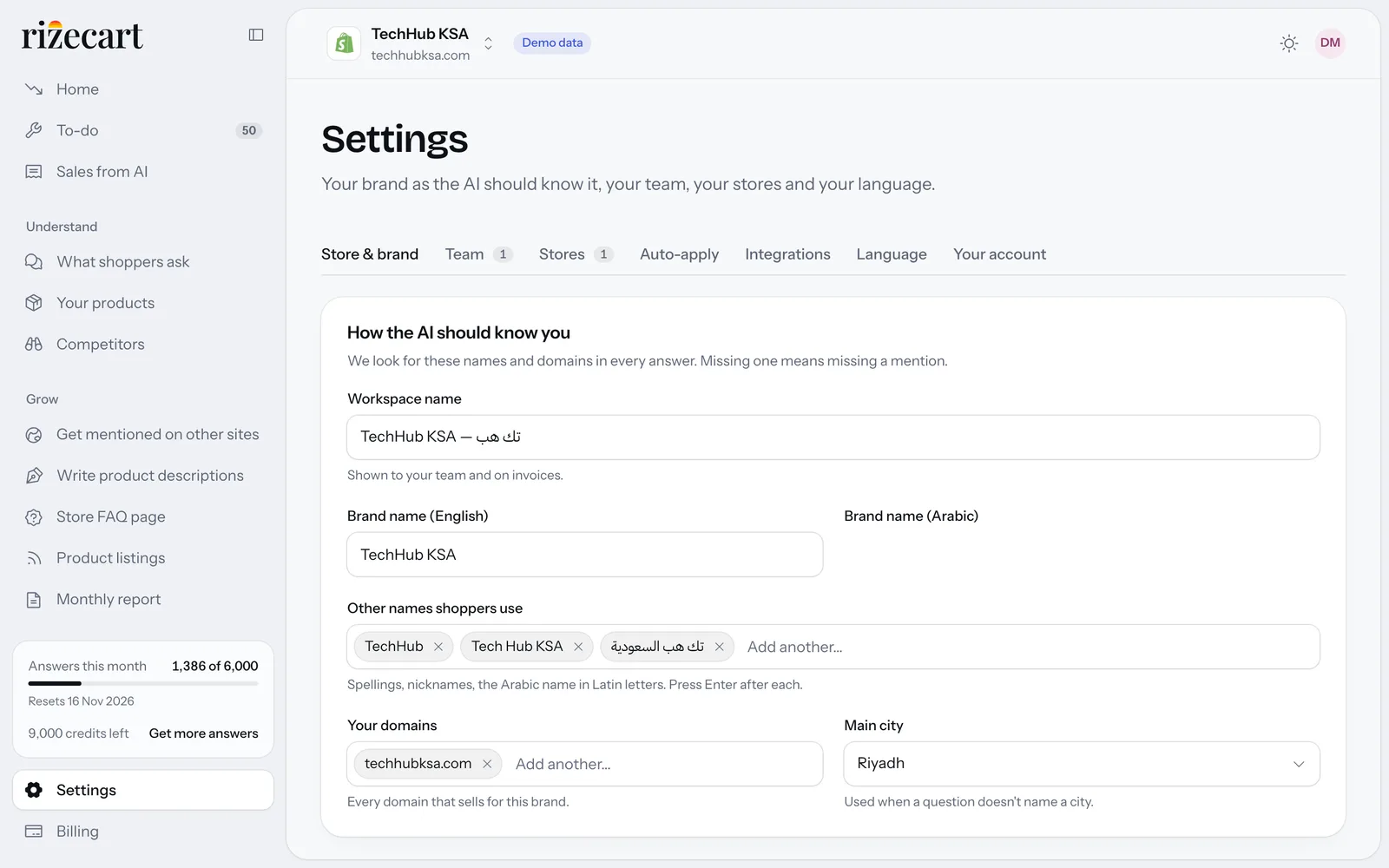
Rizecart spots your store in each AI answer by name. If buyers call you something else, an answer can mention you and still count as a miss. After setup, open Settings, then Store & brand, and fill in Other names shoppers use (spellings, nicknames, your Arabic name in Latin letters) and Your domains. The app says it simply: missing one means missing a mention.
What if the connection doesn't work?
| What you see | What to do |
|---|---|
| “Only the owner or an admin can connect a store.” | Ask the workspace owner to connect it, or to change your role in Settings, Team. |
| “This store is already connected to another Rizecart account.” | Sign in with the account that connected it, or write to us from Help & support in the account menu. |
| “That link expired. Start the connection again.” | Choose Connect again and approve straight away. |
| “The connection was cancelled. Try again when you're ready.” | Access was declined on the platform's page. Choose Connect and approve it. |
| “That doesn't look like a Shopify store address.” | Use the form your-store.myshopify.com, or just your-store. |
Not ready to connect? Run the free store check first. No card, no sign-up.
Before you move on
- Your store shows on the connect screen with its product count.
- Your brand name is filled in, in English and in Arabic if you have one.
- You kept the competitors you really compete with and dropped the rest.
- You know Rizecart changes nothing on your store until you approve a fix, unless you turn on auto-apply for safe fixes.