By the end of this lesson
You can read every fix's state, approve or dismiss a fix, decide whether to turn on auto-apply, and undo any change Rizecart made to your store.
The first worry most store owners have: “Will Rizecart change my store without asking?” No. By default, nothing changes on your store until you approve it. You can let Rizecart apply a short list of safe fixes by itself, but only if you turn that on, store by store. And you can undo any change, whether you approved it or auto-apply did.
Where do you see who's in control?
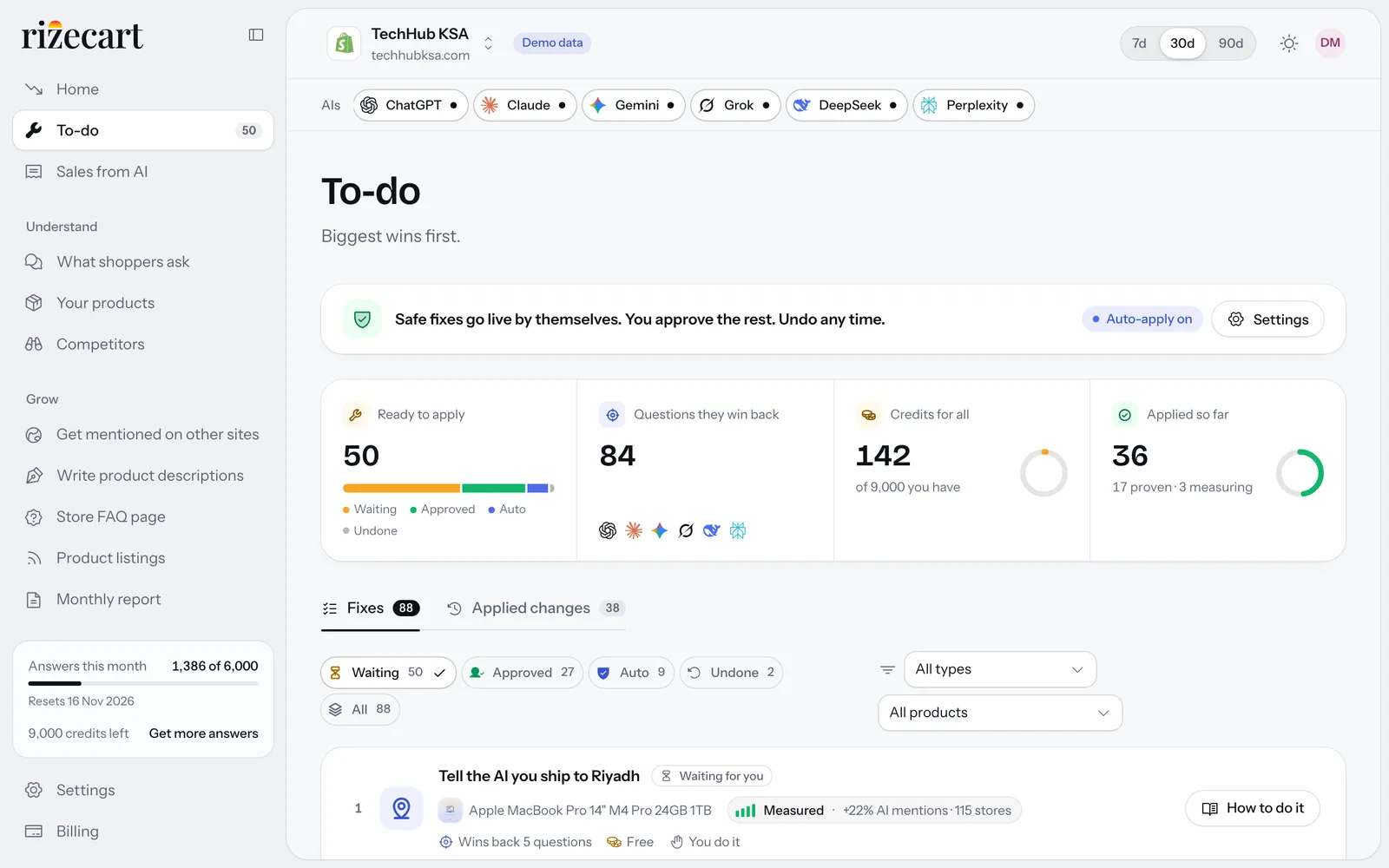
Open To-do. At the top, You stay in control says the rule in one line: “You approve every change. Undo any time.” With auto-apply on, it reads “Safe fixes go live by themselves. You approve the rest. Undo any time.” Beside it, a badge says Auto-apply off or Auto-apply on, and Settings takes you to the switch.
The six states of a fix
Every fix shows one state as a badge, with a line that says who did what and when.
| State | What it means for your store |
|---|---|
| Waiting for you | Nothing changes until you approve it. |
| Approved by you | You or a teammate approved it and it went live. The line names who and when. |
| Auto-applied | A safe fix that went live by itself, because you turned on auto-apply for this store. |
| Failed | We couldn't write it to your store, so nothing changed. Try again, or dismiss it. |
| Dismissed | You said no. We won't suggest it again. |
| Undone | It went live, then you undid it. Your store has its old value back. |
Under the Fixes tab, the chips filter the list by state. Waiting for you is selected when you arrive, and All shows everything. A state with no fixes in it stays hidden. While a fix is being written, its badge reads Applying… or Auto-applying….
Open a fix and approve it
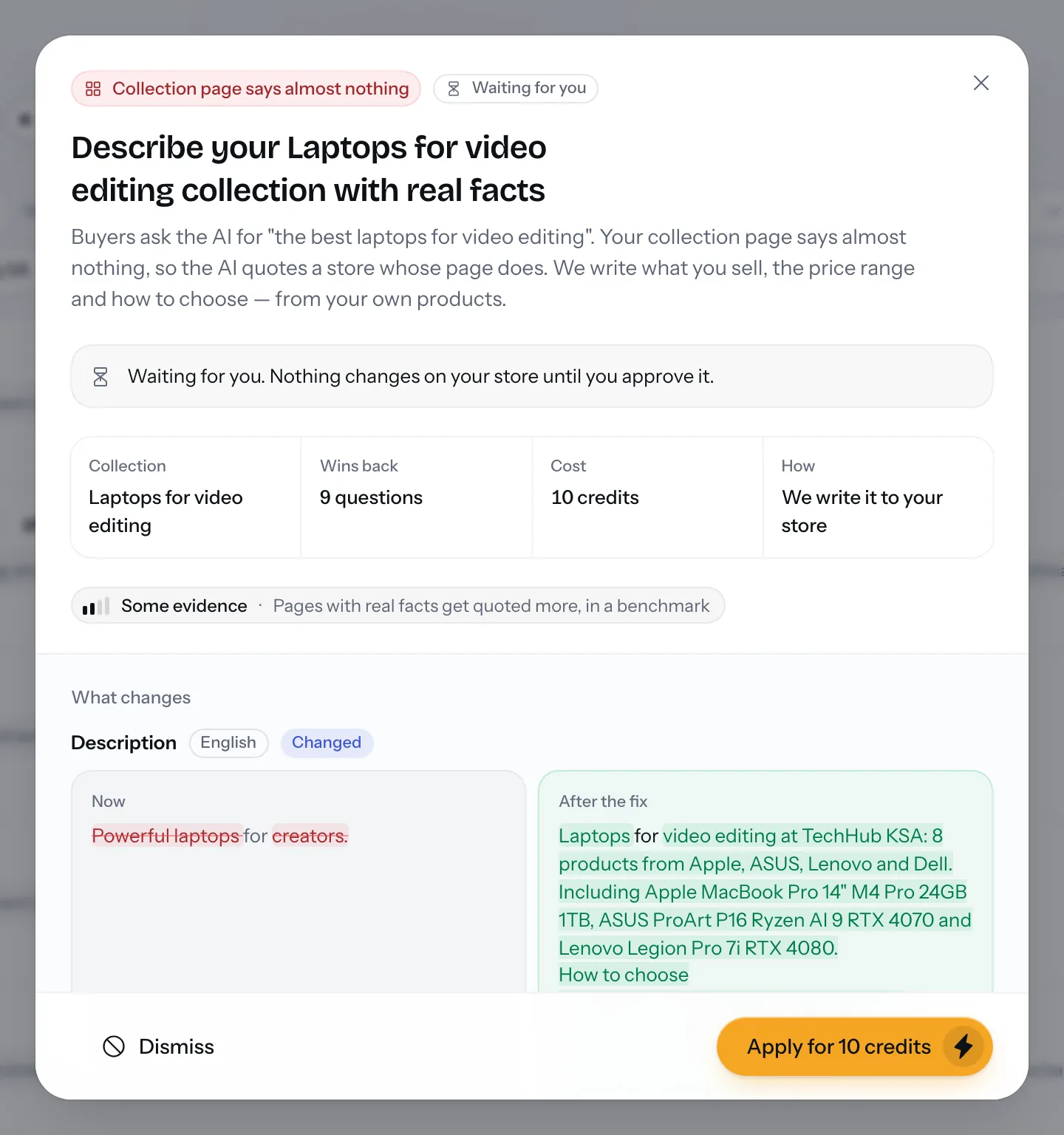
Open it
Each fix has a button. Fix it means Rizecart can write the change for you (the row says One click). How to do it means you make the change in your store, with steps. The store FAQ page has its own button, Review the page, and is approved on its own screen.
Read the four facts
Product (or Whole store), Covers (how many lost questions), Cost (Free or credits) and How: We write it to your store or You make this change. A Safe fix badge marks the kinds auto-apply can cover.
Check the before and after
Under What changes, compare Now with After the fix, field by field, in English and Arabic. If a value isn't true for your store, don't apply it.
Approve or dismiss
Click Apply fix, or Apply for … credits when it has a cost. The app confirms “Fixed. We'll ask the AIs again in 3 days, once they've had time to re-read your store.” and the badge turns to Approved by you. Don't want it? Click Dismiss, then Dismiss fix in Dismiss this fix?. A dismissed fix can't be brought back. For a How to do it fix, follow the steps in your store admin.
Should you turn on auto-apply?
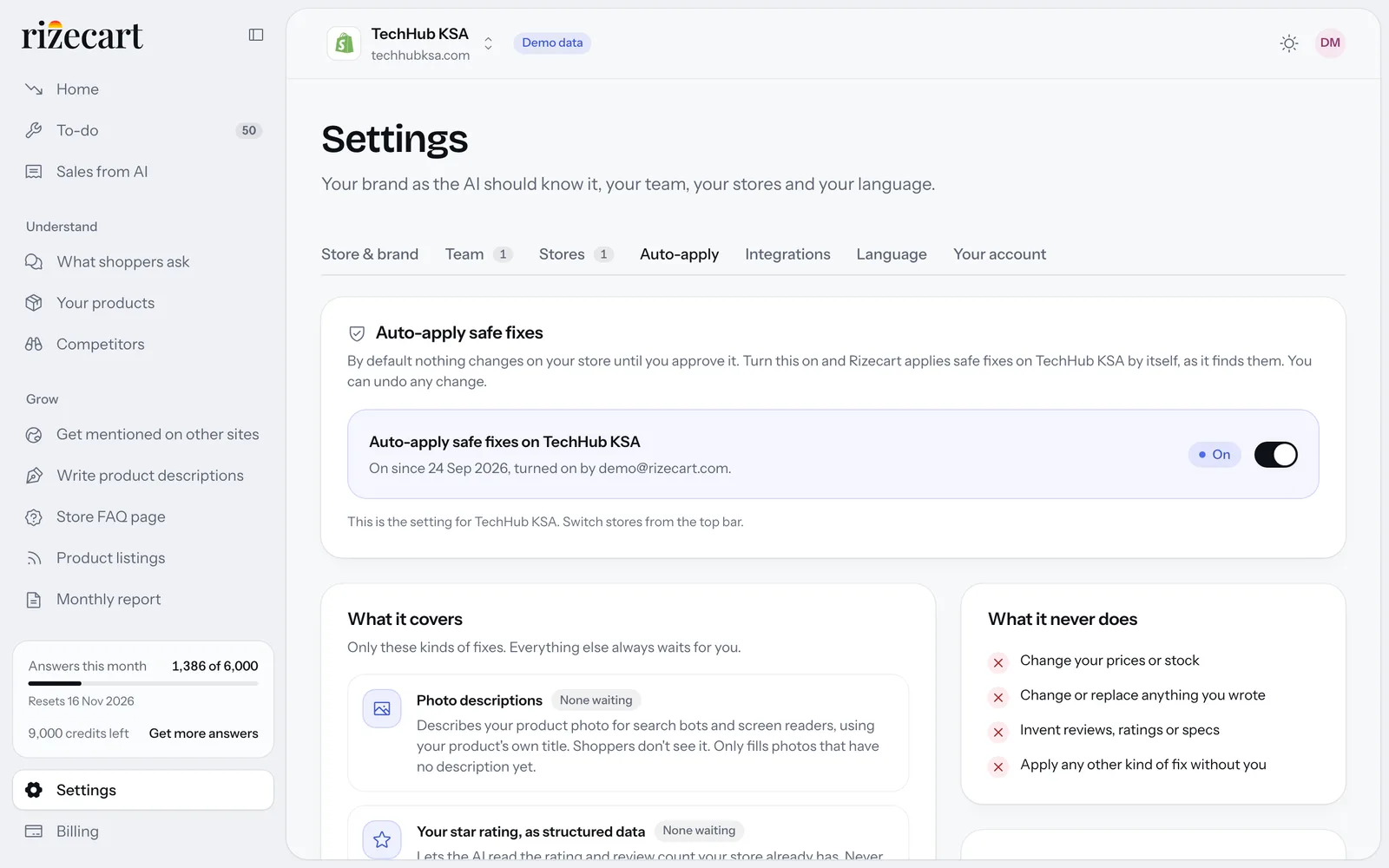
Auto-apply is off by default and set per store. Only an owner or an admin can turn it on or off; everyone else sees “Only the owner or an admin can change this.” It covers four kinds of fixes, and only these:
| Kind | What it adds |
|---|---|
| Photo descriptions | A description of your product photo for search bots and screen readers, built from your product's own title. Shoppers don't see it. Only for photos with no description yet. |
| Your star rating, as structured data | The rating and review count your store already has, in the hidden product data machines read. Never adds or edits a review. |
| Your price, as structured data | The price your page already shows, made readable to the AI. Never sets a new price. |
| Specs from your own descriptions | The “Key: value” specs you already wrote, copied into fields the AI reads. Nothing is made up. |
The rules every safe fix must pass
- It touches only its own fields. A safe fix that would change a description or a price waits for you.
- It only fills empty fields. If you already wrote a photo description, it's left alone.
- The value comes from your store's own data: your title, your rating and review count, the price on your page, the specs in your description.
- Your platform can write the field, and so undo it.
- You haven't undone the same kind of fix on that product. Once you undo one, that kind waits for you on that product from then on.
- Right before writing, Rizecart checks the product again. If something changed, or you turned auto-apply off, the fix goes back to Waiting for you.
The panel What it never does lists the limits: change your prices or stock, change or replace anything you wrote, invent reviews, ratings or specs, or apply any other kind of fix without you. Every other fix, including collection fixes and your store FAQ page, always waits for your approval.
Open the setting
Go to Settings › Auto-apply, or click Settings in the You stay in control panel on To-do. Each kind shows how many fixes are waiting, like 10 waiting.
Check the cost
The credits note says what applying the waiting fixes costs now, and what you have. Auto-apply uses credits like any fix: reserved when a fix is queued, charged only when the write succeeds. If you run low, paid fixes wait for you; free ones still go.
Turn it on
Switch on Auto-apply safe fixes on your store. The confirmation, Turn on auto-apply for …?, lists the kinds it covers. Click Turn on.
Watch it start
The safe fixes already waiting are applied straight away, and new ones as Rizecart finds them after each run. The status line records the date and who turned it on.
Changed your mind? Switch it off. There's no confirmation, and every fix waits for your approval again. A safe fix still in line when you switch off goes back to Waiting for you.
What did auto-apply do this week?
With auto-apply on, the You stay in control panel on To-do adds a line like “3 done for you this week”, with the kinds, how many products and how many you undid. Every one of them is listed in the Applied changes tab, and See applied changes in Settings › Auto-apply opens the same list.
How do you undo a change?
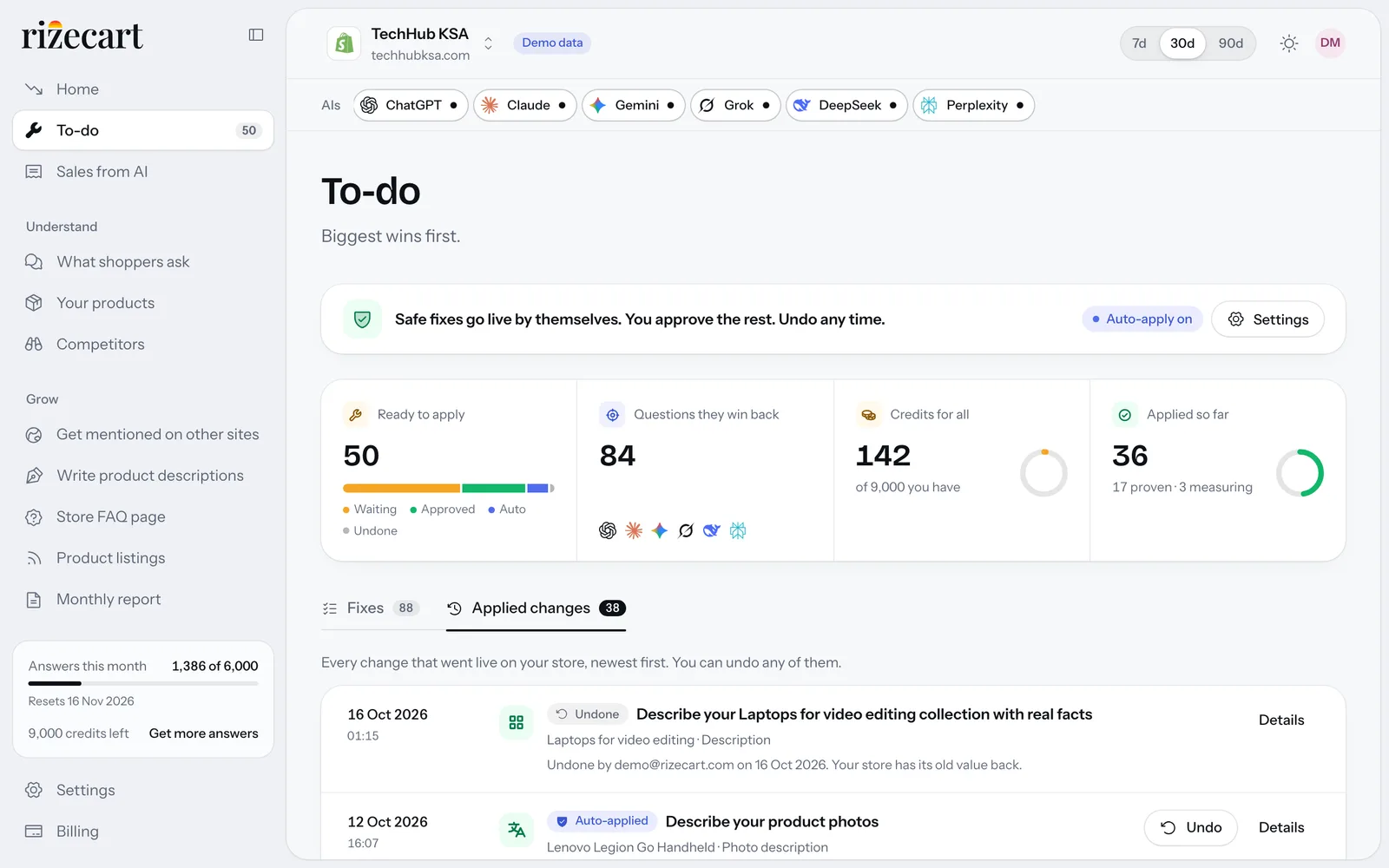
Open Applied changes
In To-do, open the Applied changes tab. Every change that went live, approved or auto-applied, is listed newest first, including the ones you undid. Show older changes loads more.
See what changed
Click Details. Under What changed, each field shows Before and After, and whether it's On your store or In Rizecart only, like your product feed.
Undo it
Click Undo. The confirmation, Undo this change?, names the fix, the product and the fields. Undoing is free; the credits the fix used aren't returned. Click Undo change, or Keep it.
Read each field's result
Restored on your store: we put the old value back through your store connection. Restored in Rizecart: it never left Rizecart. Kept your newer edit: you changed it after the fix, so your value stays. Restore by hand: see the next step.
Finish by hand if asked
When the connection can't restore a field, Finish by hand shows the old value with Copy. Paste it back in your store admin. “Empty (clear what's there now)” means the field was empty before the fix. On Salla and Zid, this is how a field that was empty gets cleared.
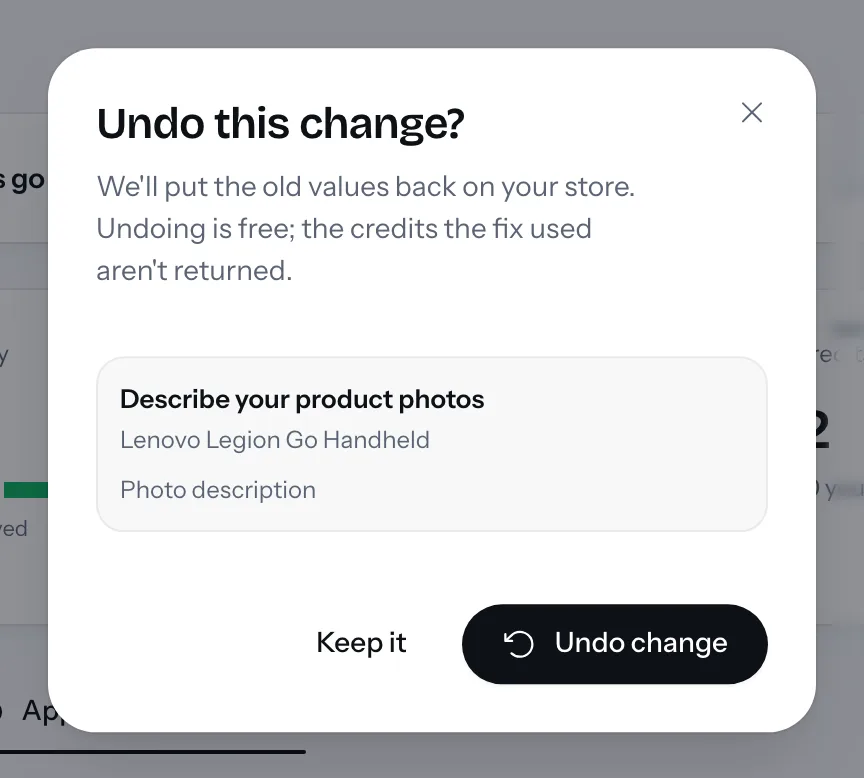
If your store refuses the undo, nothing changes and you see “We couldn't undo this, so nothing changed. Try again.” If the fix was still being measured, that measurement stops: it can't finish without the change.
Want it back? Open the undone fix and click Apply again. It goes through like a new approval, so a fix with a cost uses its credits again. Undoing an auto-applied fix doesn't block this: it only stops auto-apply for that kind of fix on that product.
Next: start fixing with Show delivery times by city so AI can quote them. To see whether your fixes moved the needle, read Read your AI visibility score, or How to get your store recommended by ChatGPT.
Before you move on
- You can name the six states and filter Fixes by any of them.
- You compared Now with After the fix before applying a fix.
- You decided, store by store, whether to turn on auto-apply for safe fixes.
- You know where Applied changes is, and that undoing is free but credits aren't returned.