By the end of this lesson
You can read the Home screen from top to bottom and choose the one fix that wins back the most questions.
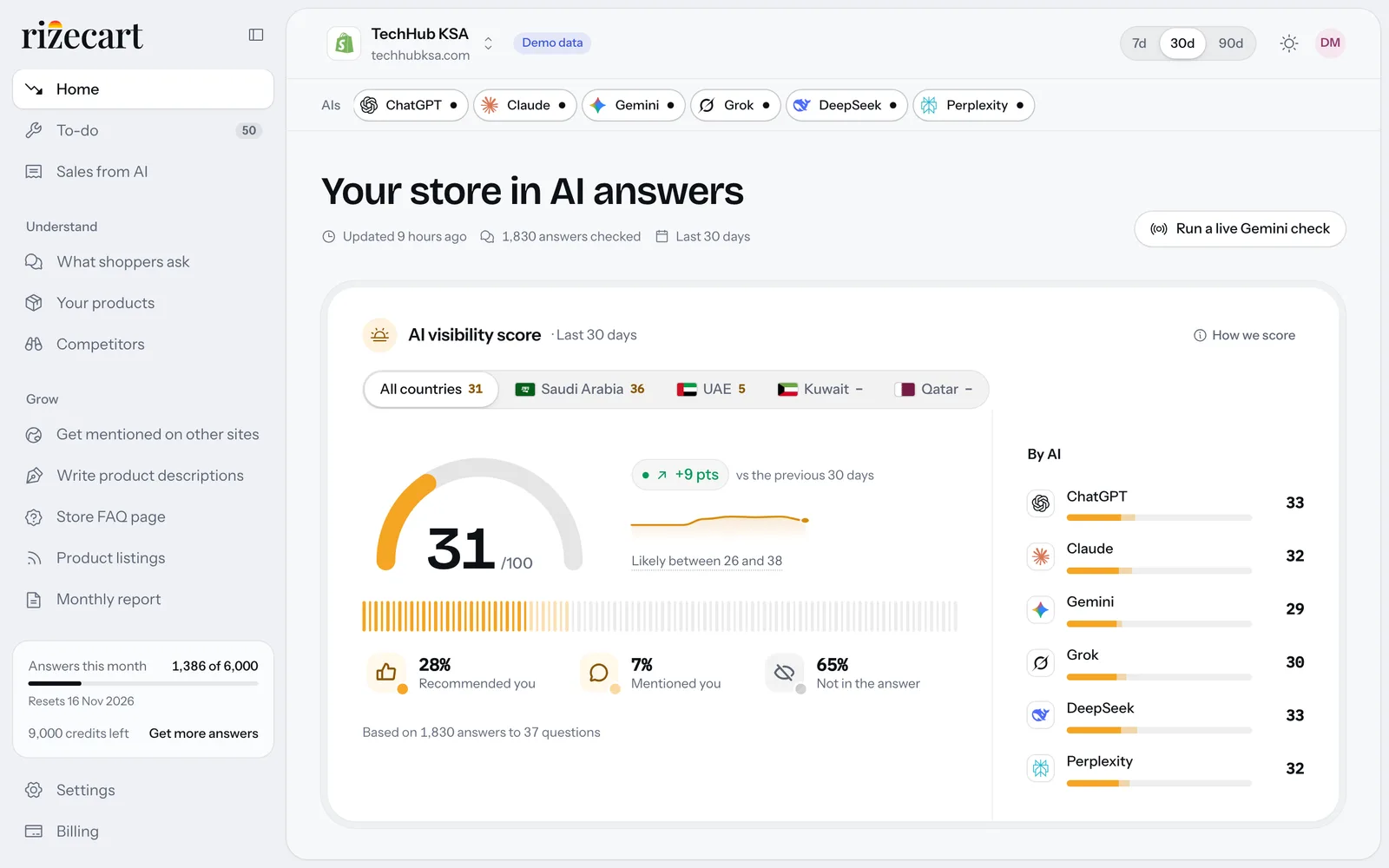
Home is the first screen you see after setup. Its title says it: Your store in AI answers. It answers one question: on which shopper questions did an AI send your buyer to another store, and why? If you open only one screen a week, make it this one.
Set the period and the AIs
The filter bar at the top has two controls. Period switches between the last 7, 30 and 90 days (30 is the default). AIs shows or hides each assistant. If you see “We're asking the AIs your first questions now”, wait a few minutes: the first run is still going.
What does the verdict say?
The first card is your AI visibility score, explained in Read your AI visibility score. The card under it, the verdict, is one sentence: on how many questions the AI sent your buyer to another store, and which stores it named instead. Under it, an estimate of what those answers are worth in orders each month, and how many fixes are ready. The button Review the top fixes opens To-do, and the note beside it says: “Nothing changes until you approve, or turn on auto-apply”. Auto-apply for safe fixes is covered in Approve fixes, auto-apply safe ones, undo any change. On the right, Who the AI recommends instead ranks stores by their share of mentions, yours marked “(you)”.
The five key numbers
| Number | What it tells you |
|---|---|
| Mention rate | How often an AI named your store when shoppers asked your questions, with a 95% range under it. |
| Share of voice | Your share of all store mentions in the answers we checked, and your rank, like “#3 of 8 stores named”. |
| Lost questions | Questions where an AI named another store and not you. Lower is better. |
| AI orders | Confirmed orders from shoppers who came from an AI. The revenue link under it opens Sales from AI. |
| Answerability | Out of 100: how many of the facts the AI needs your products carry. Price, stock, delivery to the city, returns, Arabic and English. |
How to read the lost questions
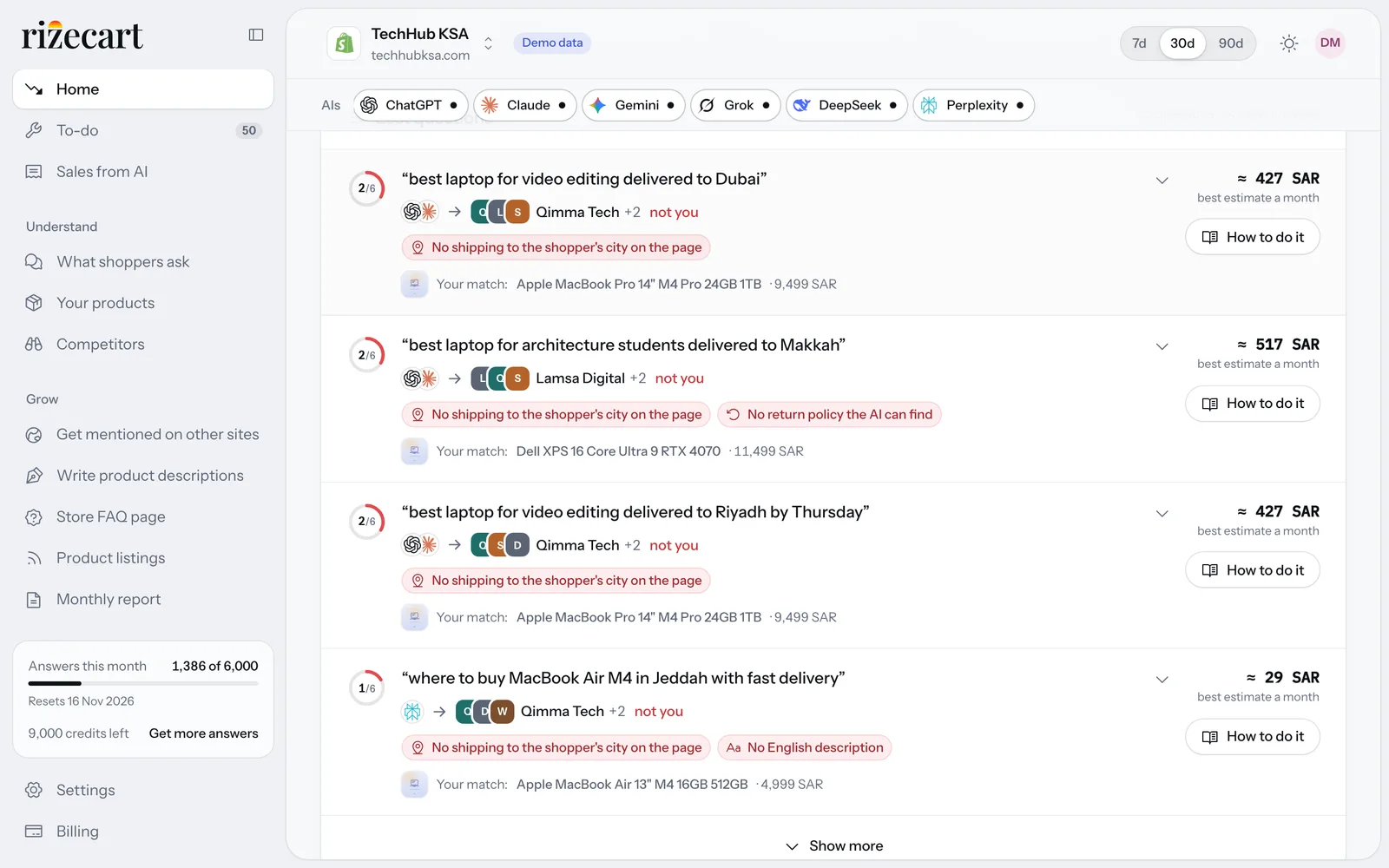
One row per question
The Lost questions panel lists each question once, with a line saying which AIs named which stores, “not you.” The ring beside it shows on how many of the AIs you track it was lost, like 3/6.
Why you were skipped
After Why: you'll see the missing facts as chips, like “No delivery time on the product page” or “The AI can't read your price”. If there's no chip yet, the row says we're still working out why.
Your product and what it's worth
Your match: names the product of yours that fits the question, with its price. On the right is the best estimate a month of what the question is worth.
Open the answers
Click the question to read the AI's answer. Answer from switches between AIs, and Full answer and fixes opens the full page, explained in the next lesson.
Act on it
Each row ends with Fix it (we write the change for you), How to do it (you make the change), or See why.
By AI, and week by week
Further down, a second By AI panel shows your mention rate with each assistant (how often it names your store at all), with its 95% range. The one inside the score card shows each AI's visibility score instead. Gemini has a Live check button. Mention rate, week by week draws one line per AI. Dashed lines are labelled answers (web-assisted or model knowledge), and the marker First fixes live shows when your first fix went out.
How do I choose my first fix?
- Go to Next best fixes at the bottom. It shows the top three, ranked by how many lost questions each one wins back.
- Look for a reason that repeats across many rows, like a missing delivery time: one fix can win back several questions.
- Check the cost. Some fixes are Free, others use credits.
- Open it with Fix it to see who does the work: We write it to your store or You make this change. For changes we write, you see the before and after first.
- Apply one fix, then give the AIs about 3 days to re-read your page before you judge it.
Next: Understand an AI answer. When you're ready to fix the most common gap, start with Delivery times by city, or read Why ChatGPT recommends your competitor.
Before you move on
- You can find your mention rate and say what its range means.
- You opened at least one lost question and read why you were skipped.
- You know which reason repeats most across your lost questions.
- You picked one fix from Next best fixes to apply first.